@steven.rolfe
thanks for the contribution and the feedback
Advice:
1. synchronize WLAN-Box 2 with the router, see explanation below for the 1st synchronization
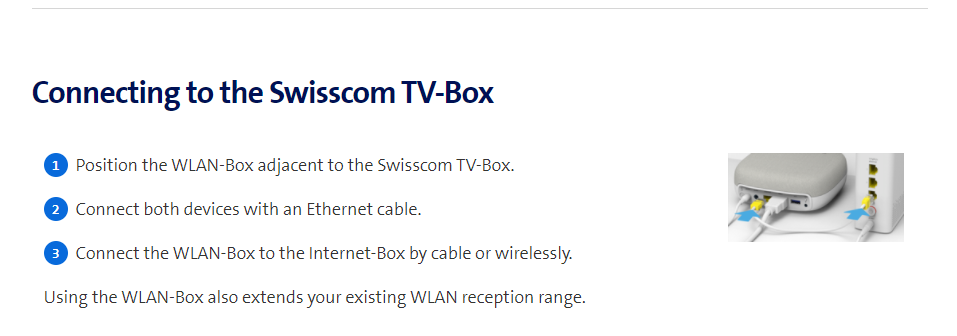
2. install WLAN-Box 2 next to Swisscom box 21 (or as close as possible)
3. connect the WLAN-Box 2 to the router via the home WLAN (Wi-Fi), find the best channel and the best frequency, if the distance is great, prefer the WLAN 5GHz and in separate mode and name also
4. connect the Swisscom box 21 to the WLAN-Box 2 using the Ethernet cable supplied by Swisscom
Some useful tips and information
WLAN-Box positioning and setup - Help | Swisscom
The WLAN-Box can be used in two ways:
- As an Access Point: To optimise WLAN reception throughout your home, connect the WLAN-Box to the Internet-Box with a cable.
- As a WLAN repeater: This also boosts WLAN reception, but not in the same quality as an Access Point. To use it as a WLAN repeater, position the WLAN-Box between the Internet-Box and the location where you are wanting to use the Internet, and connect the two boxes wirelessly.
1st synchronization of the WLAN-Box 2:
It is preferable to perform the 1st synchronization of the WLAN-Box 2 and the Internet-Box directly with an Ethernet cable, either as an access point or as a repeater via WLAN, then switch off the WLAN-Box 2 and turn it back on in the new location. The latest Firmware may be installed near the Internet-Box after connection, so it is better to wait 7 to 8 minutes after connection, then switch it off and move it to the new location.
Swisscom Home App provides interactive help for any installation
Swisscom Home App | Swisscom
The Swisscom Home app unites all the smart assistants from your different providers, such as the Swisscom Smart Switch, Philips Hue or Sonos, in one app – for central control and much more… Use the Swisscom Home app to check which devices are connected to your home network.